

Microsoft 365 Copilot: The Definitive Guide
What 99% of employees miss.

Hey friends 👋
Welcome to another Signal Pro workflow issue.
Your company just rolled out Copilot.
You’ve opened it once, maybe twice. Clicked around. Asked it something generic. Closed the tab.
Now it sits there in your toolbar, unused, while you wonder what you’re supposed to actually do with it.
You’re not alone. Most employees I speak to have the same experience: they have access to a really powerful AI tool, but no idea how to make it useful for their actual work.
Today I’m going to fix that.
This is the definitive guide to Microsoft 365 Copilot. By the end, you’ll understand:
How M365 Copilot actually works (and why your data is safe)
The core interface: modes, models, and input options
How to attach files and reference your work
Scheduled prompts that run automatically
The two agents that make Copilot genuinely powerful
How to personalise it to match your working style
Let’s dive in.
📨 Quick note: This guide is designed for teams. If your company uses Microsoft 365 Copilot, share it with your colleagues or manager.
First things first: Which Copilot are we talking about?
This guide focuses on Microsoft 365 Copilot, the enterprise version that integrates with your work data.
This is not the free Microsoft Copilot you might use at home.
Here’s the key difference:
Microsoft 365 Copilot is a premium, licensed tool integrated directly into your M365 apps (Word, Excel, Teams). It works across your organisational data (emails, files, chats, calendars) through Microsoft Graph.
Microsoft Copilot (free version) is a web-based chatbot for personal use, restricted to public internet data and limited to local tasks.
The distinction matters because M365 Copilot can actually do things with your work. It knows your calendar and can reference the document your colleague shared last week. Fundamentally, it understands your organisation's context.
Enterprise data protection
Before we go any further, let’s address the question everyone asks: “Is my data being used to train the model?”
The short answer is no.
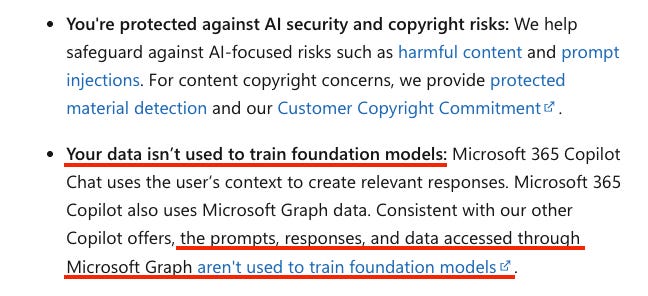
When you use Microsoft 365 Copilot, your data is accessed through Microsoft Graph. This means none of your organisational data is used to train Microsoft’s foundation models or any third-party models (in this case, OpenAI).
You can verify this yourself. Click the green shield icon in Copilot and select “Enterprise Data Protection.”
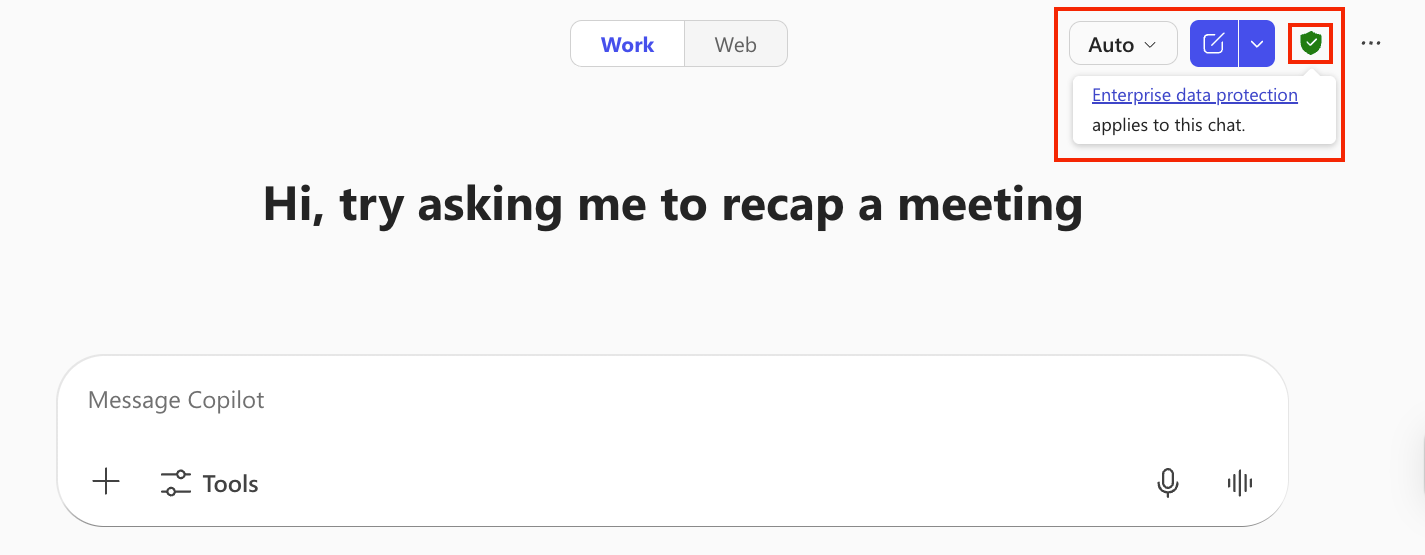
Search for “train” in the documentation, and you’ll see the explicit confirmation.
Important contrast: The consumer version of Copilot has different defaults. If you check Settings → Privacy, you’ll find “Model training on text” is toggled ON by default.
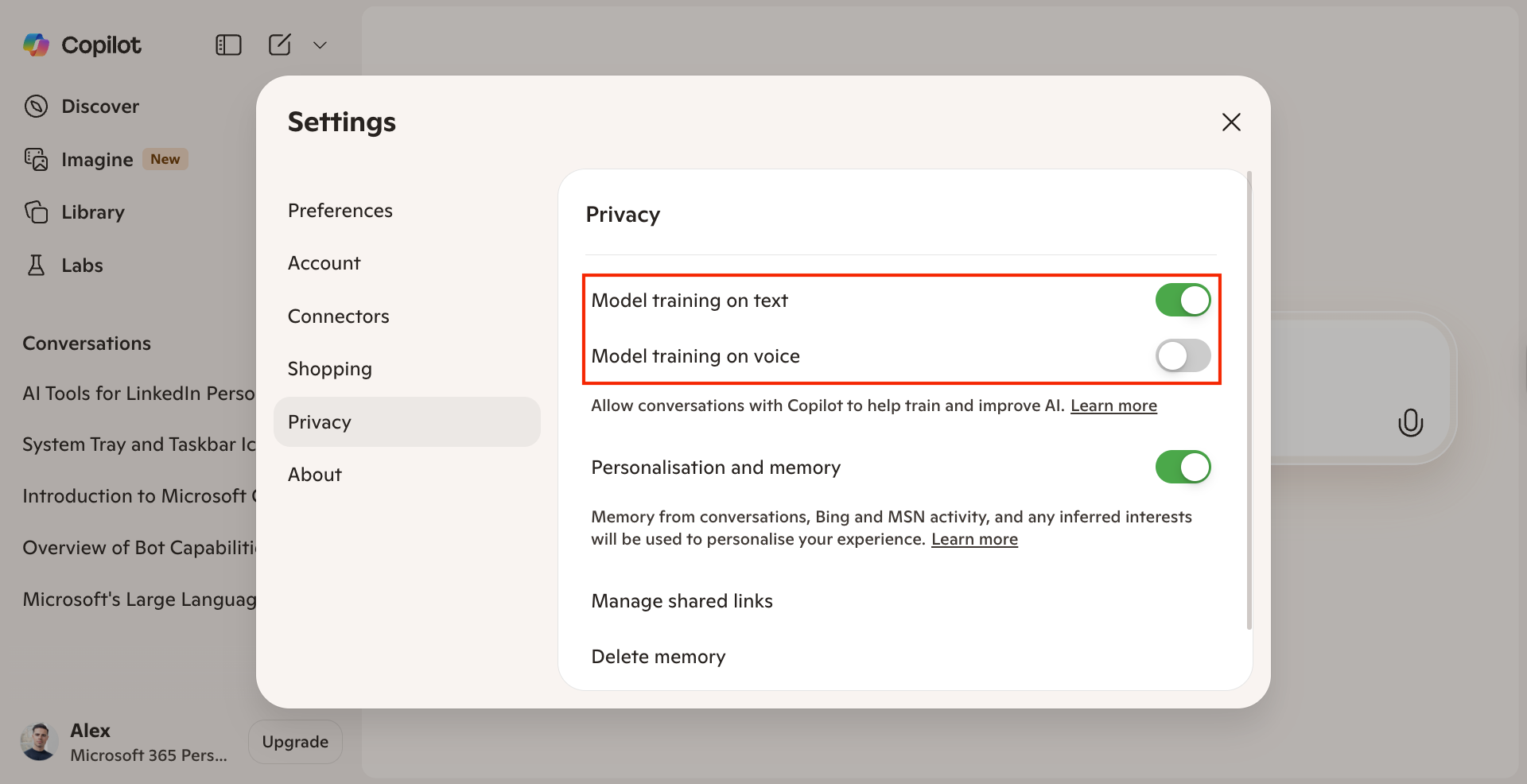
If you use the free version for anything personal, toggle both training options OFF. For M365 Copilot users, this isn’t a concern. Your enterprise data stays protected.
The chat interface
The chat pane is where most of your interaction happens. Let’s break down the key components.
Work mode vs Web mode
At the top of the interface, you’ll see two tabs: Work and Web.
Work mode accesses your internal organisational data. Think emails, chats, SharePoint, and OneDrive. This is where you do company-specific tasks with high security.
Web mode searches public internet data. Use this for general research that doesn’t require internal context.
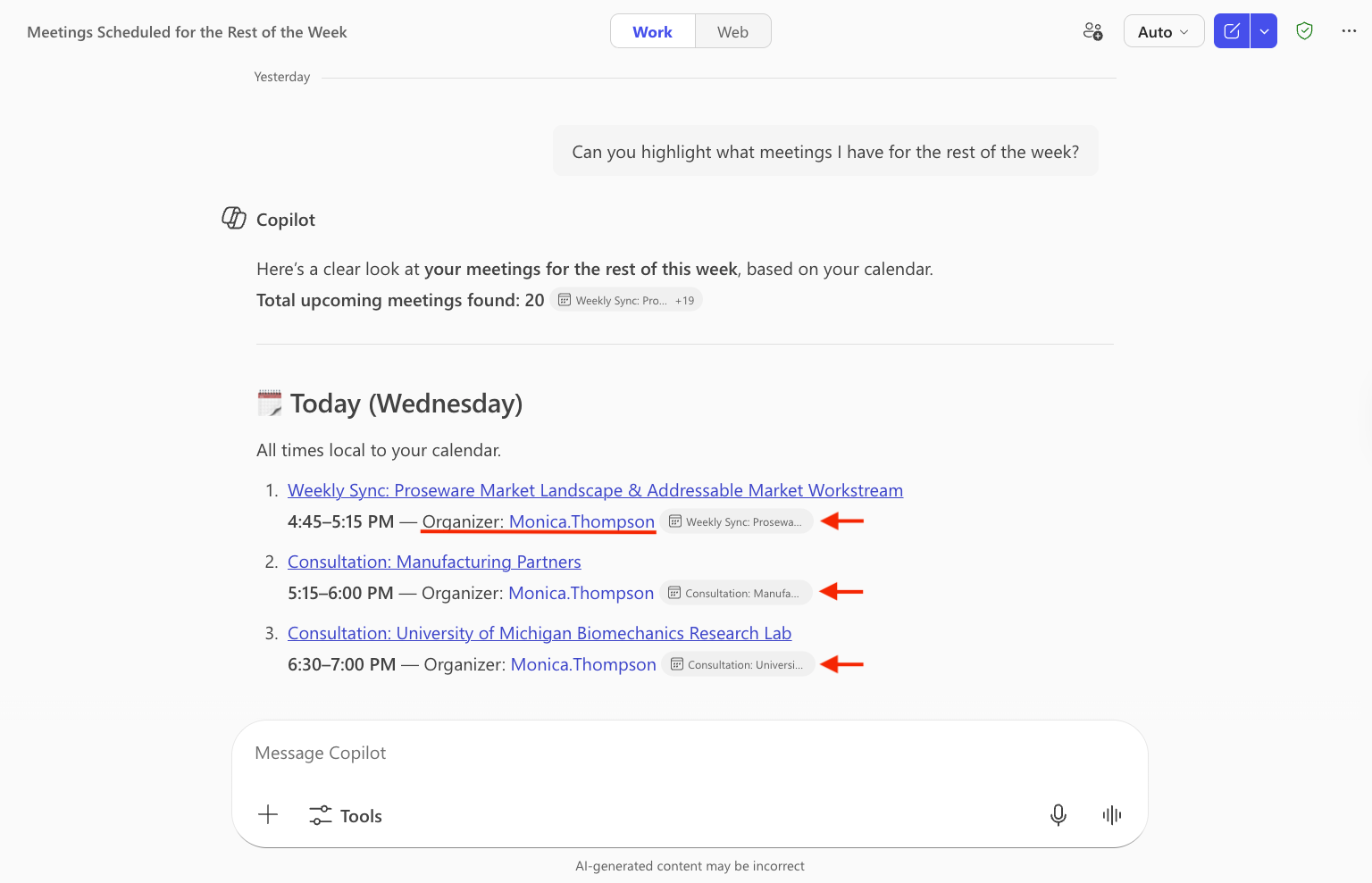
Example in Work mode: “Can you highlight what meetings I have for the rest of the week?”
Copilot pulls from your calendar and returns a structured list of your upcoming meetings, complete with organiser names and the option to join directly.
Example in Web mode: “What are the best AI agents that me and my team can use in 2026?”
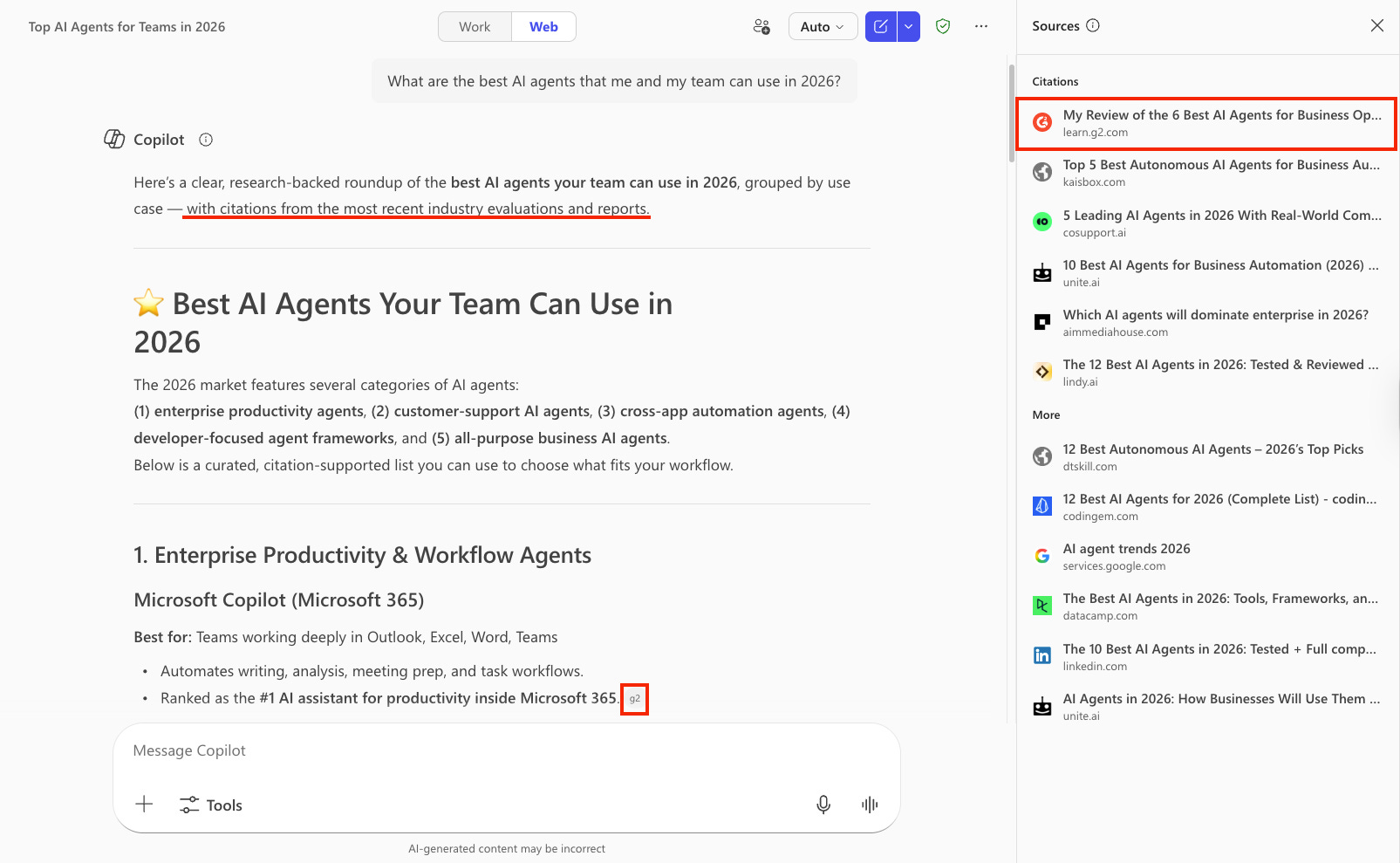
Copilot searches the web and returns categorised results with citations you can click through to verify.
My rule of thumb for each is: if the answer lives within your organisation, use Work mode. If it lives on the internet, use Web mode.
Model selection
Click the model dropdown and you’ll see several options:
The first three run on GPT-5:
Auto (default): Copilot decides whether to answer quickly or think deeper based on your prompt
Quick response: Answers immediately. Great for drafting, translation, simple questions
Think deeper: Takes longer (10 seconds to a few minutes) to reason through your request. Use for complex analysis, planning, or multi-step tasks
Under “More” you’ll find GPT-5.2 options:
GPT-5.2 Quick response
GPT-5.2 Think deeper
GPT-5.2 handles long-context performance better than GPT-5. For shorter, fast responses, I find the models roughly equivalent. But for complex analysis with lots of context, GPT-5.2 Think Deeper produces noticeably higher-quality outputs.
Input modes
Beyond typing, Copilot offers two additional input modes that change how you interact with it.
Voice chats
Click “Start a new voice chat” to have a back-and-forth conversation with Copilot.
I use this when I’m on the go, if I’m walking, at the gym, or just want to think out loud. It’s perfect for fleshing out ideas on topics that require extended back-and-forth.
For example, you might start with “I’m doing research on AI agents for my financial services team of 50 people” and have a natural conversation exploring options, asking follow-ups, and refining your thinking.
Voice mode feels a lot less static (less like querying a tool), and more like sparring with a smart colleague. It’s perhaps my favourite mode for deep dives into topics I want to better understand.
Dictation
If you speak faster than you type (I definitely do), dictation keeps you in the chat pane while capturing long-form thoughts.
Unlike voice chat, dictation doesn’t start a voice conversation. Instead, it transcribes what you say into the input field so you can see both your prompts and Copilot’s responses visually. I’ll use this when I have complex prompts I want to articulate while maintaining the written chat format.
Attaching files
One of Copilot’s most powerful features is its ability to work with your files. There are three ways to attach content:
1. Add work content (the forward slash method)
Press / in the input field. You’ll immediately see recent files from your OneDrive. This is the fastest way to reference something you’ve worked on recently.
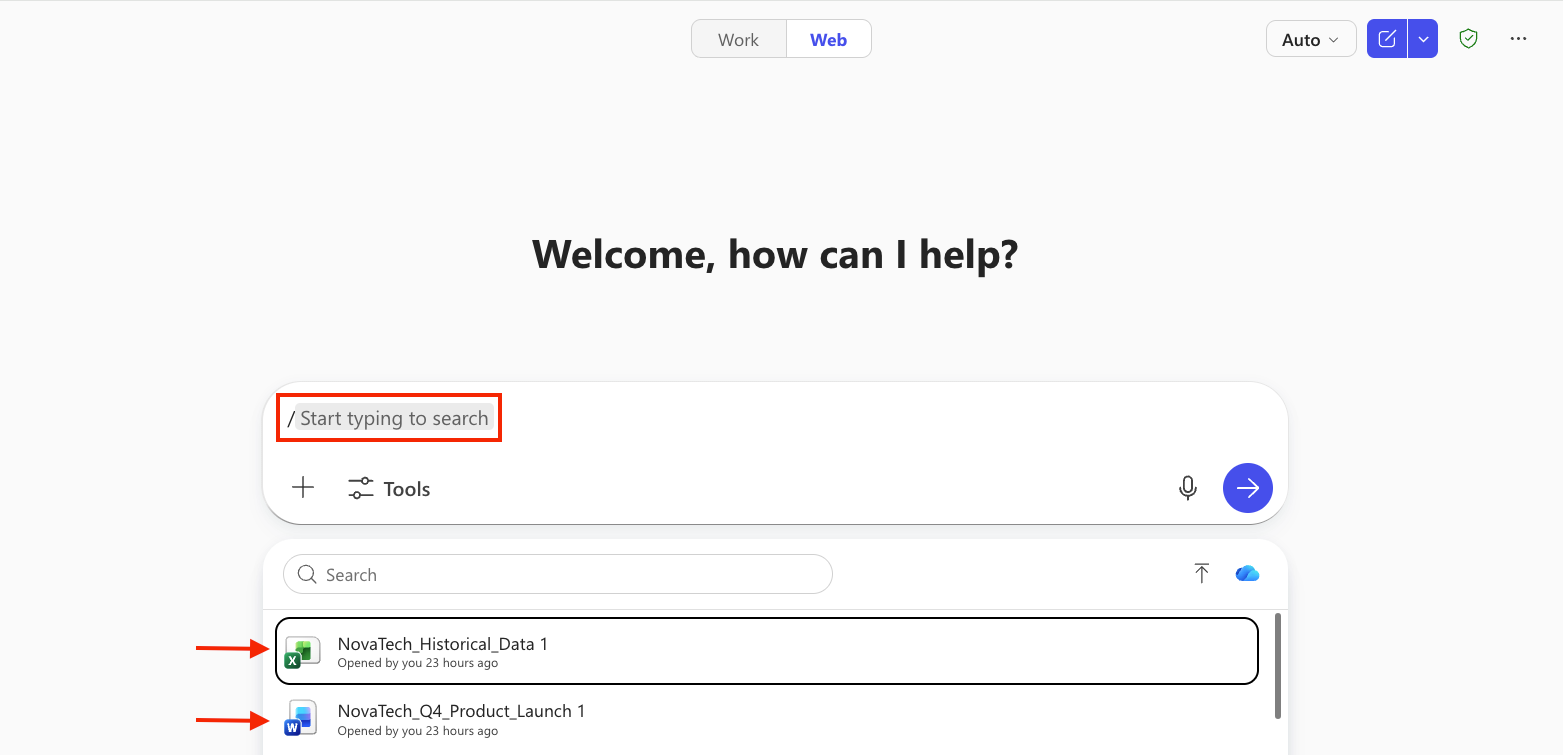
Example workflow:
Press
/and select “Project Atlas Weekly Sync Meeting”Prompt: “Summarise the key decisions and action items from this meeting”
Copilot extracts decisions (launch date confirmed, design approval received, meeting cadence change) and action items with owners and due dates
From here, you can ask Copilot to transform that output: “Turn this into a formatted email summary I can send to participants”
This is AI at its best: using it to transform one medium into another. Document → structured action items → ready-to-send email.
2. Upload images and files
Click the + icon and select “Upload images and files” to upload directly from your desktop.
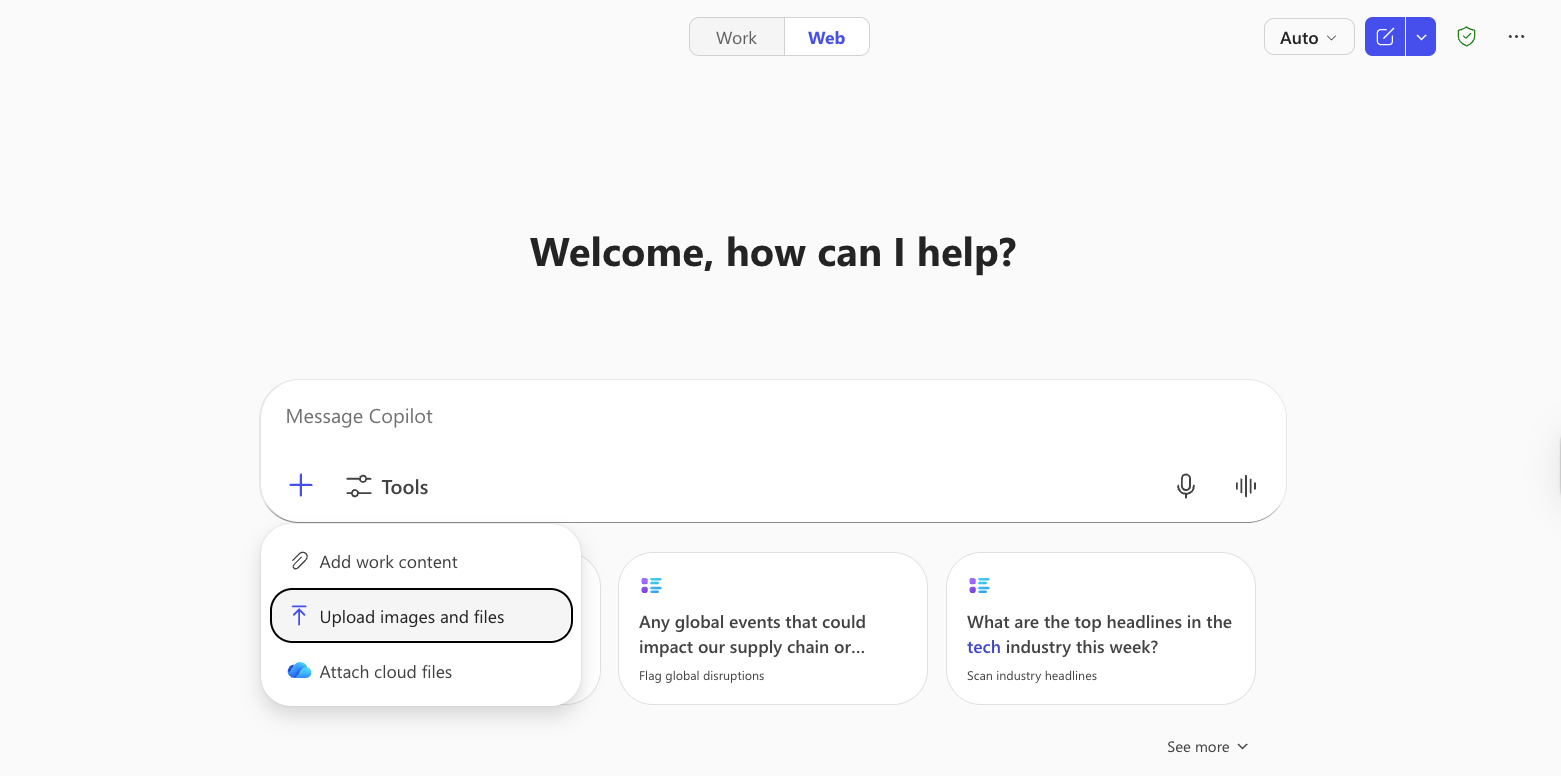
Example workflow:
Upload a proposal PDF
Prompt: “What are the payment terms and key deadlines in this document?”
Copilot extracts payment structure, invoice terms, and milestone deadlines
Copilot will often proactively offer to extract additional items after your initial prompt has been executed.
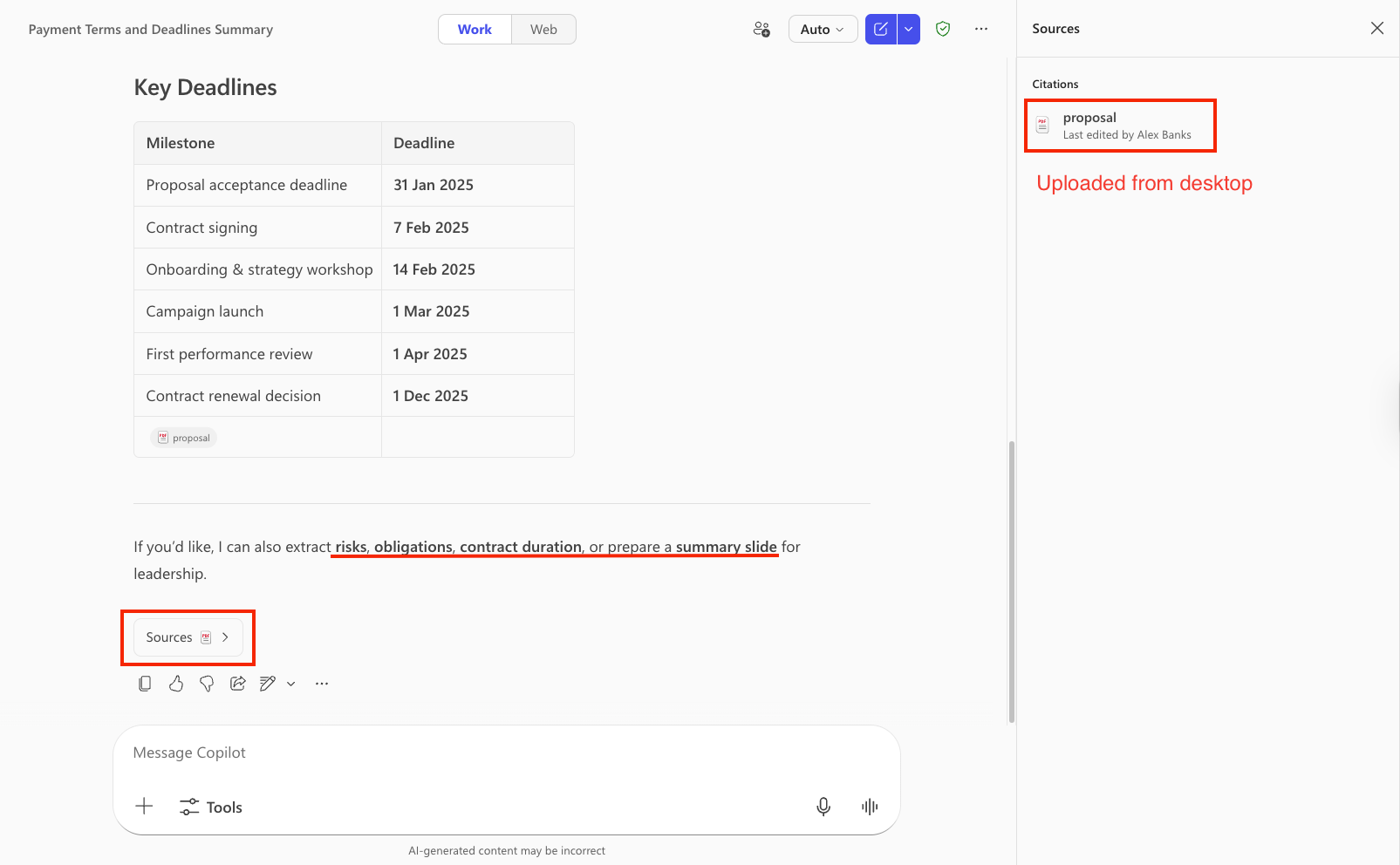
In this case, it offers to outline risks, obligations, contract duration, or even prepare a summary slide for leadership.
3. Attach cloud files
For files already in your cloud storage (OneDrive, SharePoint), use “Attach cloud files” to navigate and select them.
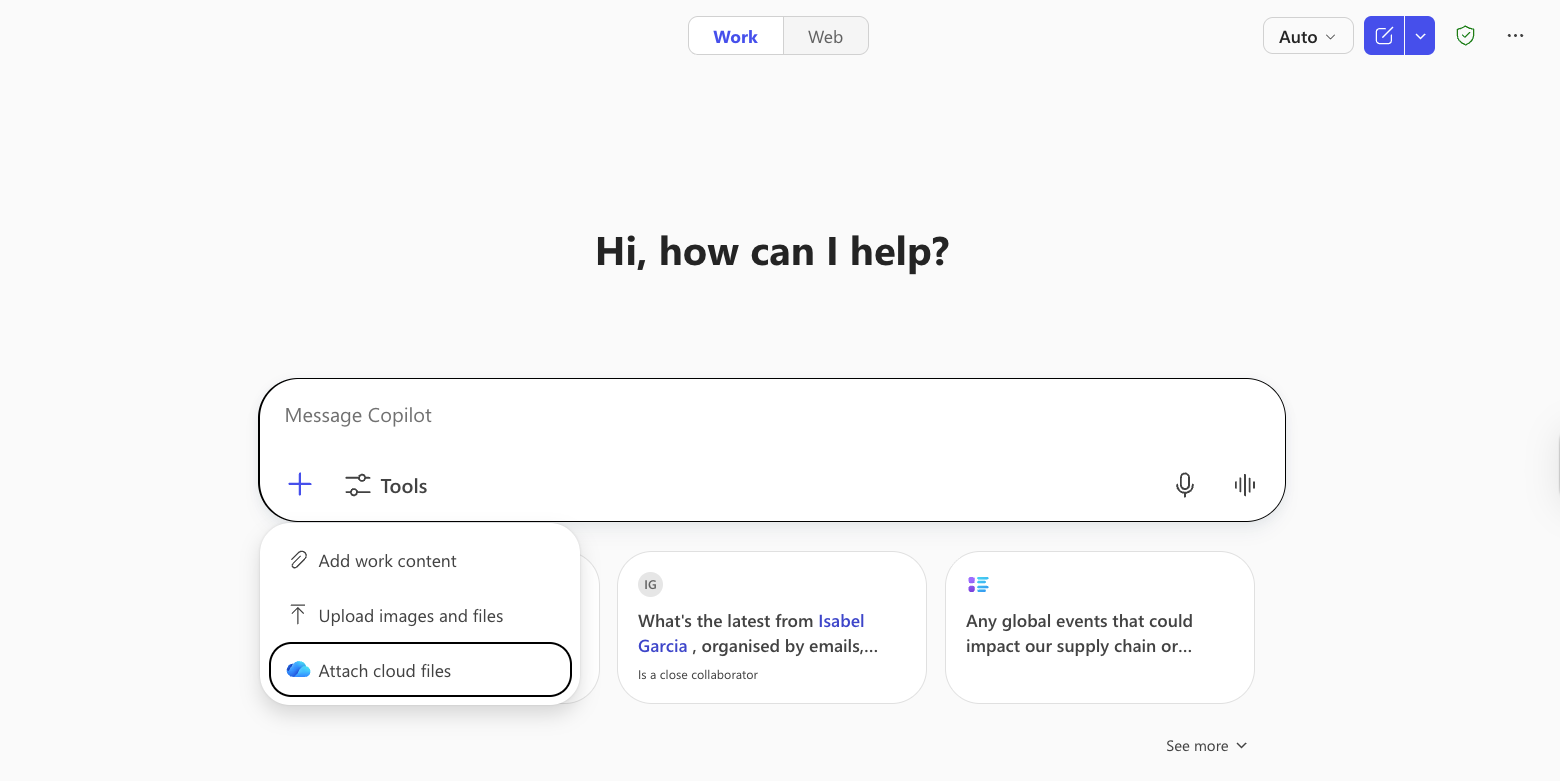
Example workflow:
Attach your Q3/Q4 budget spreadsheet
Prompt: “Compare Q3 vs Q4 spend and highlight any categories that went over budget”
Select GPT-5.2 Think Deeper for deeper analysis
Copilot uses Python to analyse the data and returns a comparison with specific overspend categories identified
You can watch it work by clicking the dropdown.
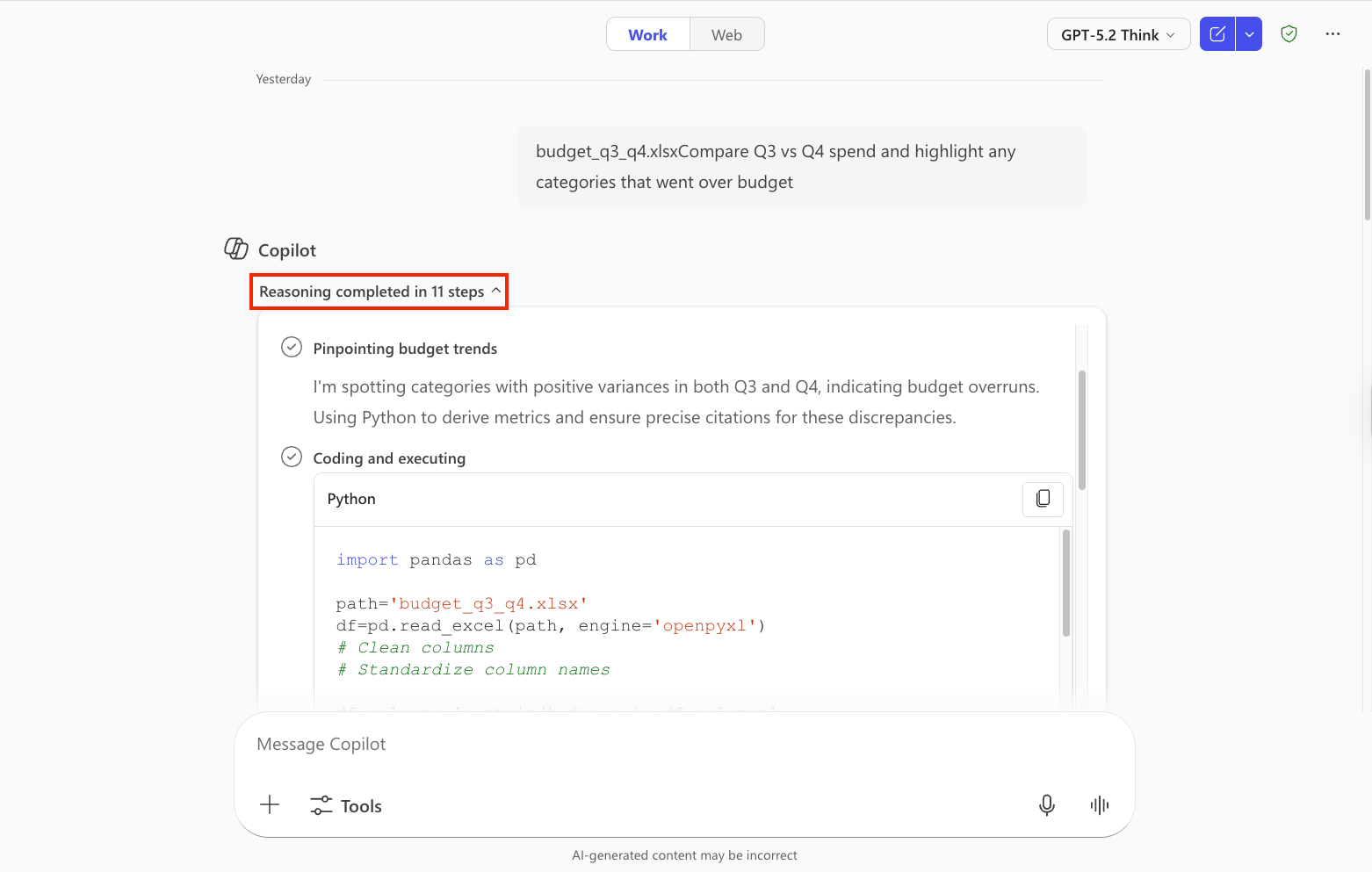
It shows the Python code executing in real-time. All that complexity is hidden unless you want to understand the thinking behind the answer.
Scheduled prompts
This feature is fantastic for staying ahead of your week.
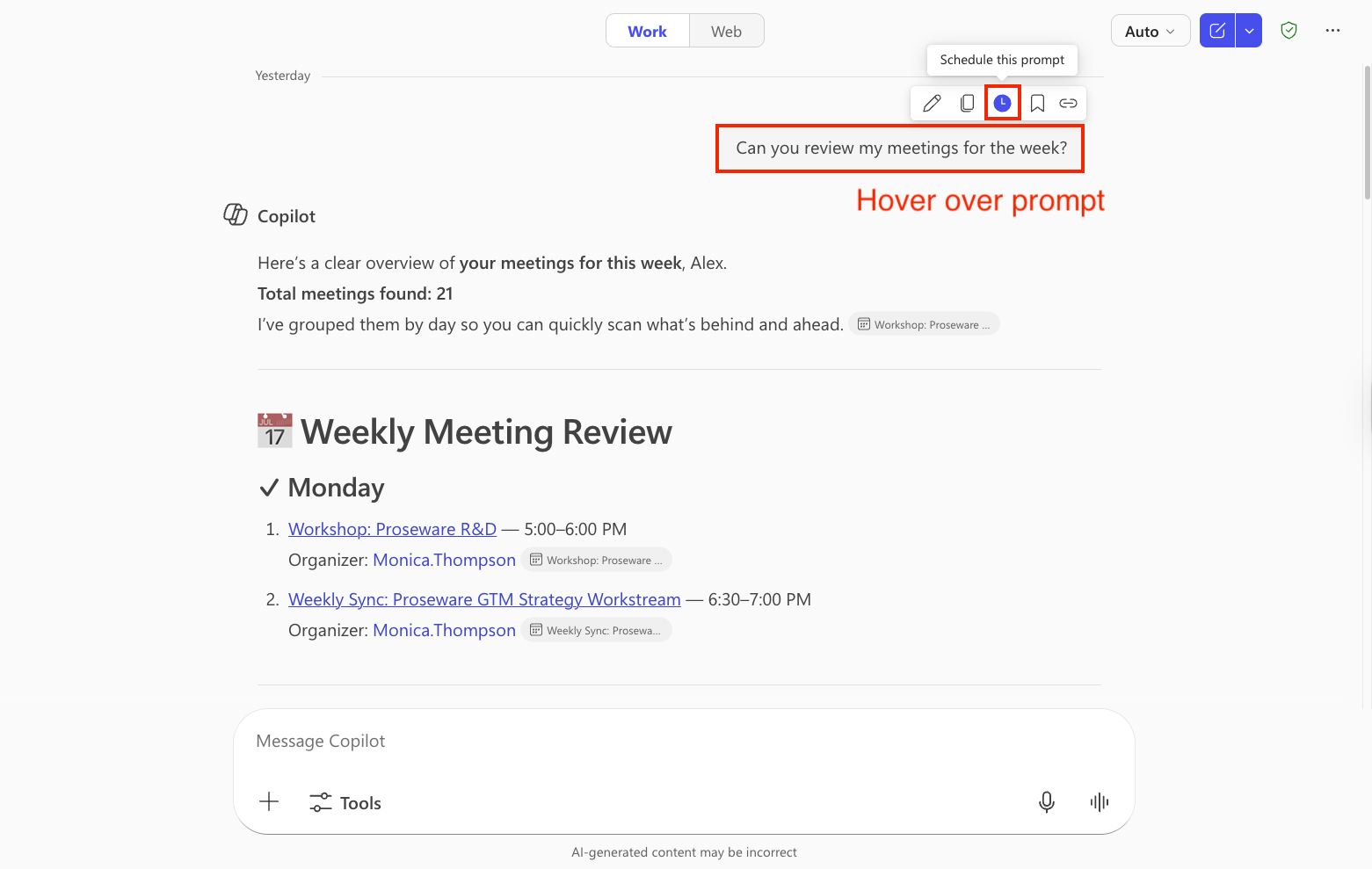
Let’s say you frequently ask Copilot to review your meetings for the week. Instead of typing that prompt every Monday morning, schedule it.
How to set it up:
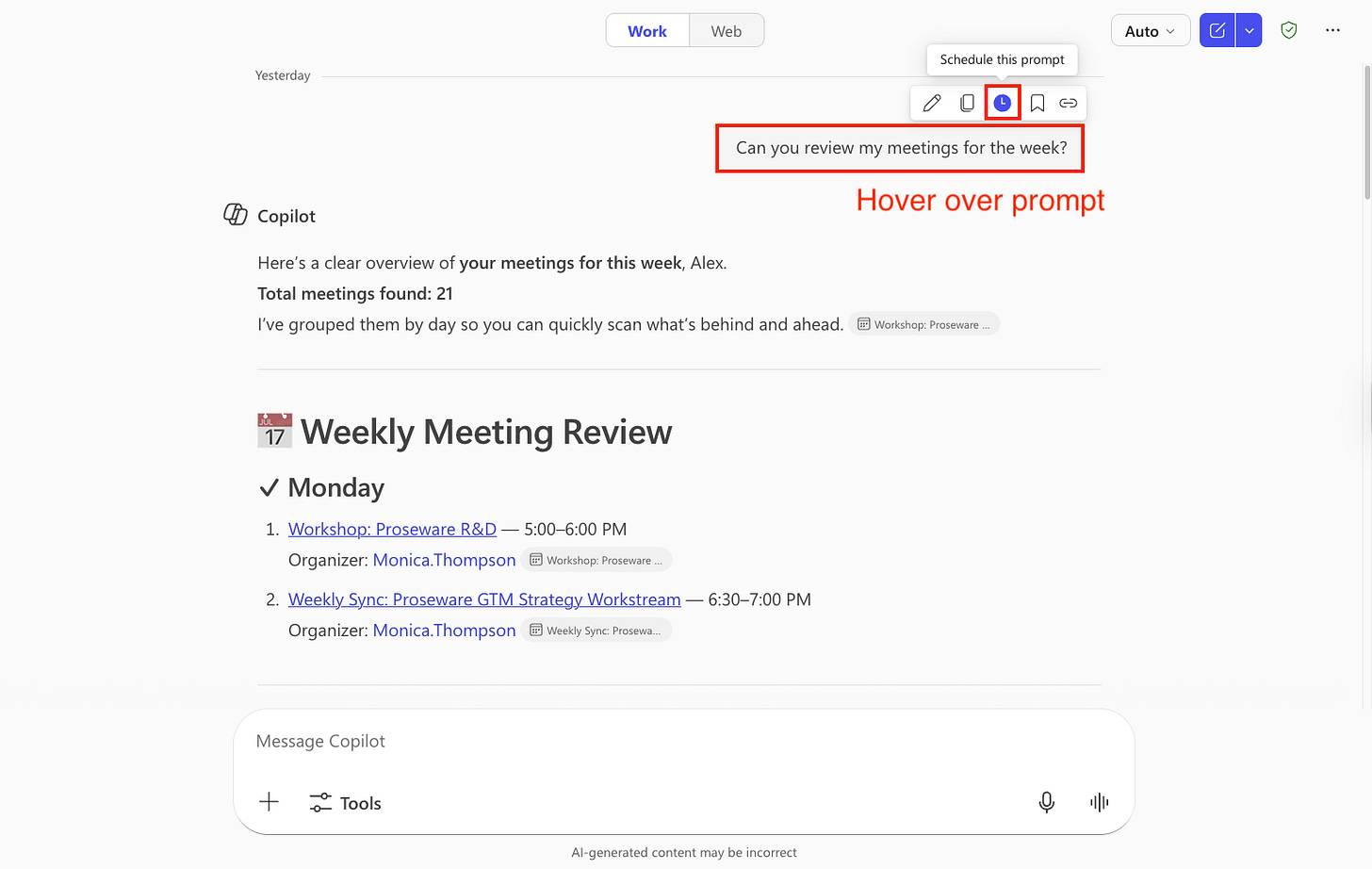
Run a prompt in Work mode: “Can you review my meetings for the week?”
Hover over your prompt and click the clock icon
Set frequency (daily or weekly), I set to every Sunday at 9am
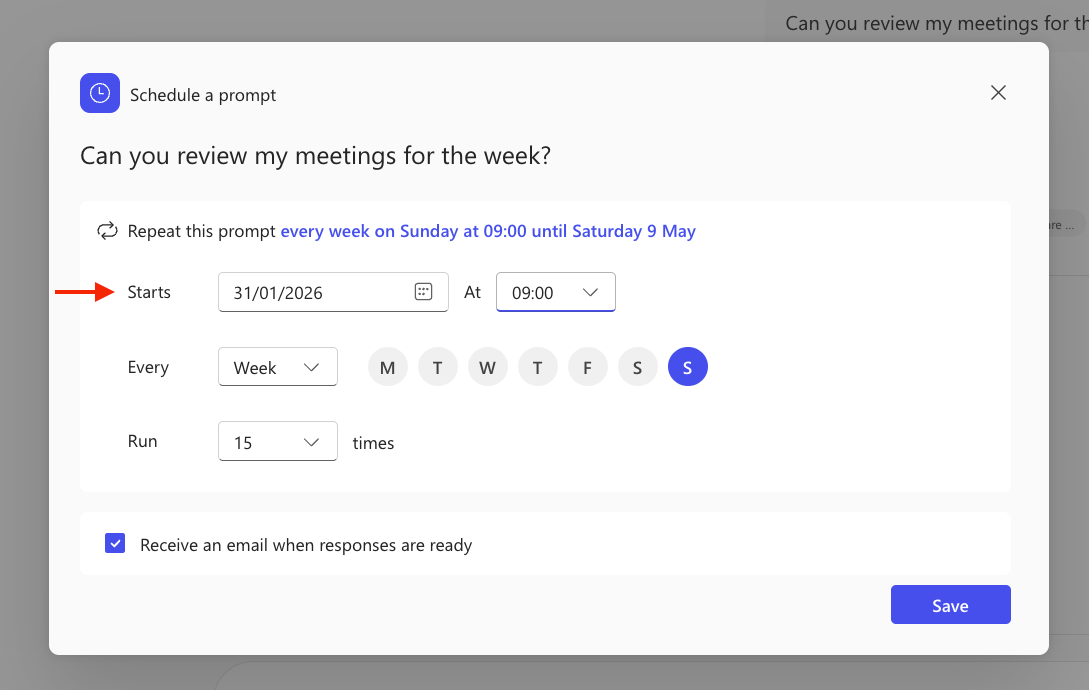
Toggle “Receive an email when responses are ready”
Click Save
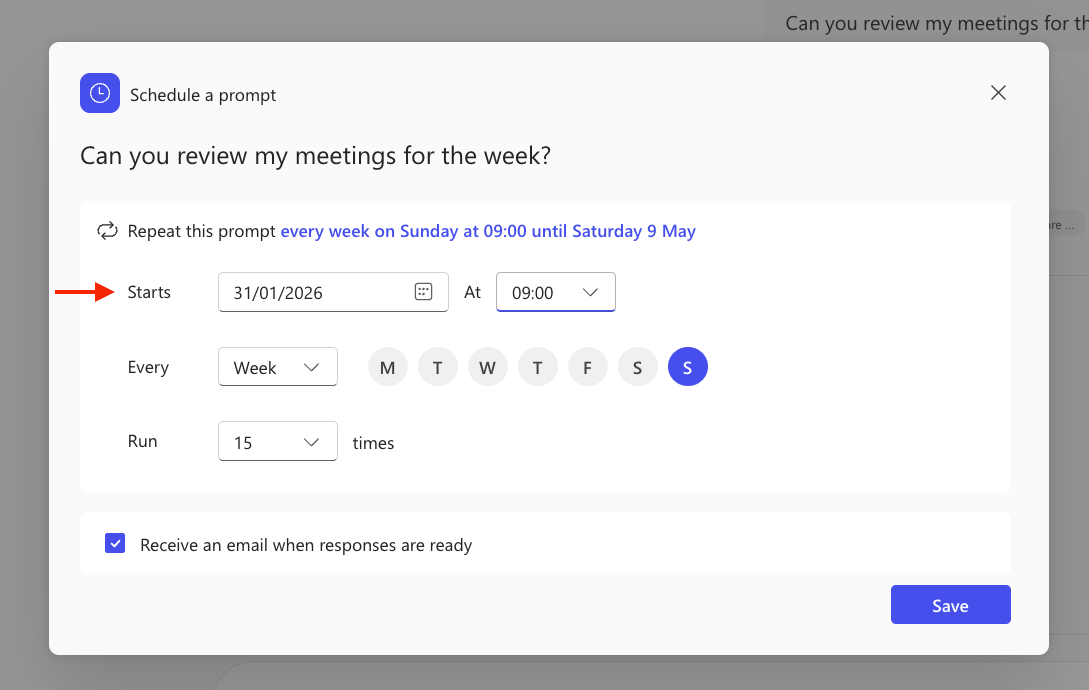
Now every Sunday, Copilot runs this prompt automatically and emails you when it’s complete. Click the email link to view your meeting summary in Copilot.
The opportunities here I think are endless. Teams message digests, project status updates, really anything within your M365 ecosystem can become an automated briefing.
Temporary chats
Sometimes you want a fresh conversation without creating memories or leaving a trace in your history.
Click the dropdown in the top right and select “Temporary chat.”
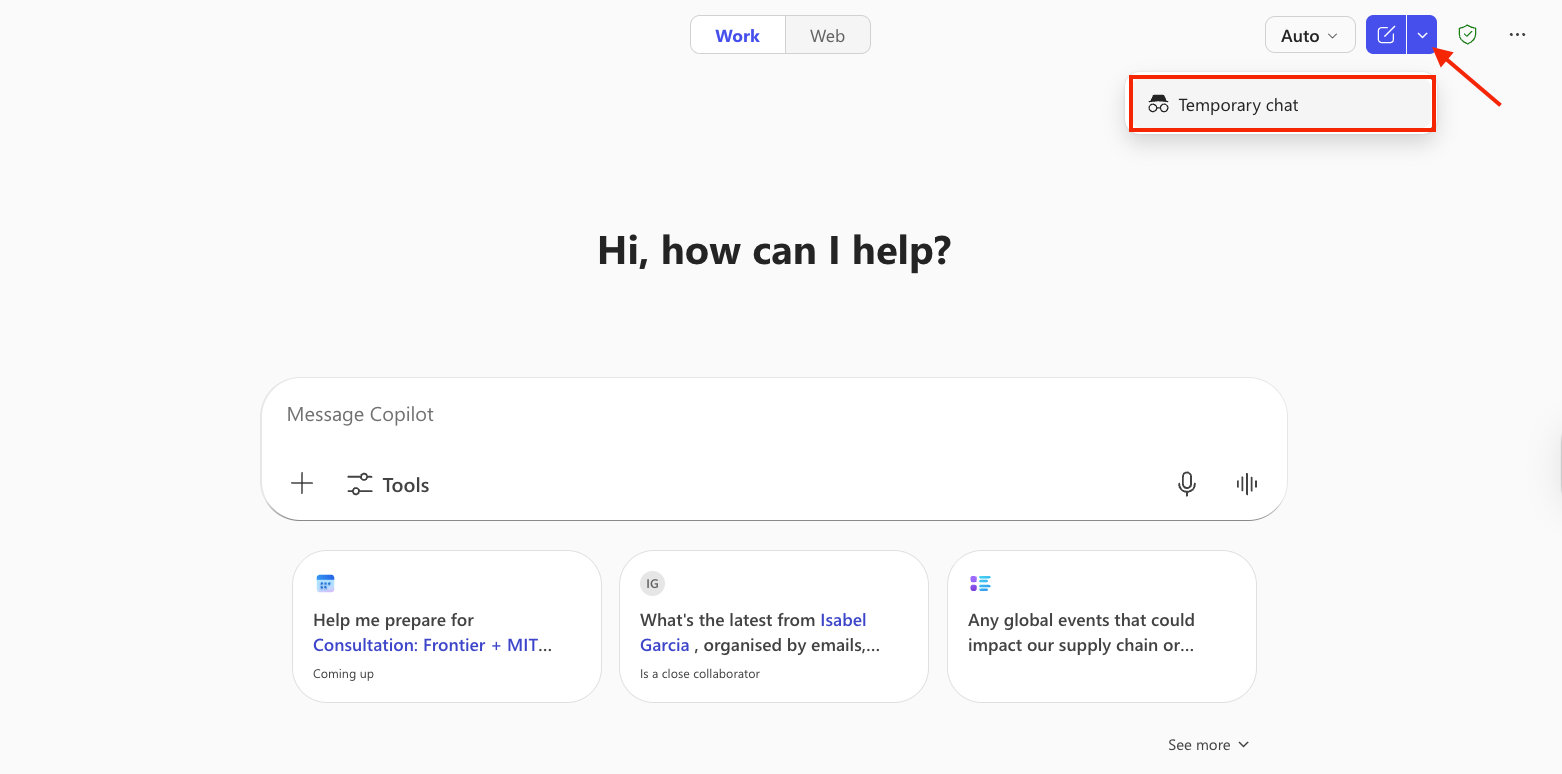
What temporary chats do:
No memories are created
The chat won’t use or build on context from previous sessions
It won’t be saved to your chat history
When to use them:
Asking sensitive business questions you don’t want traced
Exploring ideas or strategies that aren’t yet finalised
Testing Copilot capabilities in a clean environment
Important caveat: “Temporary” means private from your perspective (no history, no memory). But these chats are still subject to your organisation’s retention policies. Your IT and compliance team can access them if needed. This means it’s not invisible. Rather, it’s just not building on top of your personal Copilot context.
Agents
Now we get to what makes Copilot genuinely useful. Using powerful built-in agents that handle complex, multi-step tasks.