

Stop Building Slides From Scratch
How I use Claude directly inside PowerPoint to build decks in minutes.

Hey friends 👋
Welcome to another Signal Pro workflow issue.
I’ve spent more hours formatting PowerPoint slides than I’d ever care to admit.
And it’s not just me. If you work in consulting, finance, law, or frankly any role that touches client-facing decks, you’ve probably lost entire evenings to what is essentially graphic design disguised as strategy work.
Whilst it’s vital to get the slide’s content right, the formatting can be a real pain and seems like an endless chasm of optimisation that will never achieve “perfect” (at least for me).
Lucky enough, Anthropic just released Claude in PowerPoint, which is a new add-in that puts Claude directly inside your slide deck (not as a separate tool you have to copy-paste from).
It sits in the right-hand panel of PowerPoint itself and reads your existing slides, your Slide Master, your fonts, your colour scheme, then builds on top of what you already have.
I’ve spent the past week stress-testing it across five real-world scenarios, and in this guide I’m going to walk you through every single one.
Here’s what we’ll cover:
Setup — Install to first prompt in under 2 minutes
Editing existing slides — Fill in blank slides that match your deck’s formatting
Creating slides from web research — Pull live information directly into new slides
Building slides from attached documents — Turn a PDF into a visual timeline
Full deck creation from reference slides — Give it a sample deck style + a source document, and watch it build
Extending existing presentations — Add new content to an existing deck while preserving the original design
Let’s get into it.
1. Setup: install to first prompt
Getting Claude into PowerPoint takes about 90 seconds.
Head to the Microsoft Marketplace, click Get it Now, sign in with your email, and open it in PowerPoint. You’ll see a panel appear on the right-hand side. Make sure to click Allow and continue, then log in with your Claude account (it’ll redirect you to a browser to authorise).
A few things to note during onboarding:
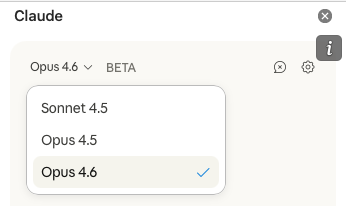
Model choice matters. You get access to Opus 4.6, Opus 4.5, and Sonnet 4.5. I recommend Opus 4.6. It’s Anthropic’s most capable model and excels across long context windows. For tasks with longer planning horizons (like building multi-slide decks), it’s simply the best option.
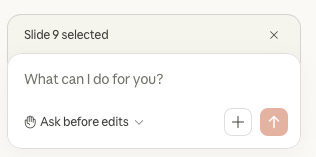
Slide selection is important. The panel shows which slide you currently have selected (in this case, slide 9). If you want Claude to manipulate a specific slide, make sure you click on it first. This seems obvious, but it caught me off guard the first time.
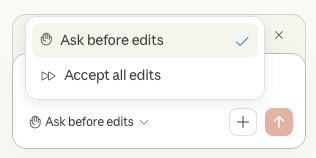
Edit permissions give you control. You can choose between “Ask before Edits” and “Accept all Edits.” I strongly recommend Ask before Edits for anything precise. It pauses before making changes so you can review them. For larger generation tasks (like building an entire deck), “Accept all Edits” or “Always Allow” saves you from clicking approve on every single slide.